Usage
The project provides two main executable variants:
Non-GUI version — Command-line or interactive console interface.
GUI version — Graphical interface for parameter configuration.
Note
The working directory of the program is always the root directory of the program installation. All relative paths used in configuration files or command-line options are resolved with respect to this directory.
Both share the same internal logic and configuration parameters, but differ in how user input is provided:
The Non-GUI version can receive parameters through the command line or request them interactively if some parameters are missing.
The GUI version provides a visual interface to specify the same parameters.
Each version can also be compiled in two build modes:
Normal build — Prioritizes numerical accuracy.
Fast build — Prioritizes performance, allowing small precision trade-offs.
Command-line Options
The Non-GUI version accepts the following options:
Options:
  --mode <string>               Program mode (default: "FromConfig")
  -I, --input_config <string>   Input configuration directory
  -O, --output_folder <string>  Output folder (optional)
  --silent                      Run the program in silent mode
  -h, --help                    Print usage information
Modes of Execution
The --mode parameter defines how the simulation is initialized.
It directly affects the interpretation of the --input_config argument.
Mode |
Input Type |
Description |
|---|---|---|
|
Initial world configuration |
The |
|
Checkpoint (text format) |
The
|
|
Checkpoint (binary format) |
The
|
See Configuration for details on the expected directory structure.
Output Folder
The --output_folder parameter specifies where simulation results are saved.
If provided, its value must be a valid directory path.
If omitted, the program automatically suggests a default output path, displayed to the user through the console (Non-GUI) or interface (GUI).
The default path depends on the operating system, for example:
On Linux:
/home/<user>/Weaver/outputOn Windows:
C:\Users\<user>\Documents\Weaver\output
Example:
# Default behavior (output folder suggested automatically)
./Weaver-non-gui.exe --mode FromConfig --input_config ./configs/initial_world

# Custom output folder
./Weaver-non-gui-fast.exe --mode FromTextCheckpoint \
             --input_config ./configs/world_from_text_checkpoint \
             --output_folder ./results/resumed_simulation
Interactive Input (Non-GUI)
If some parameters are not provided through the command line, the program will request them interactively:
> ./Weaver-non-gui
Select Mode:
  1) FromConfig
  2) FromTextCheckpoint
  3) FromBinaryCheckpoint
Enter mode number: <selected number>
---------------------------------------------
Please specify config directory.
Input config: <selected path>
---------------------------------------------
Please specify output directory.
Output folder [default: "C:\Users\<user>\Documents\Weaver\output"] (press ENTER to default): <selected path>
---------------------------------------------
Please specify if you want to display the simulation output.
Do you want to show output [Y/n]: <response>
---------------------------------------------
...
Graphical Interface (GUI)
The GUI version provides the same configuration capabilities as the Non-GUI version, but through a graphical interface.
Each field in the interface corresponds to a command-line option:
Select run mode →
--modeInput config →
--input_configOutput Folder →
--output_folderShow Output →
--silent
Example launch:
./Weaver-gui.exe

./Weaver-gui-fast.exe
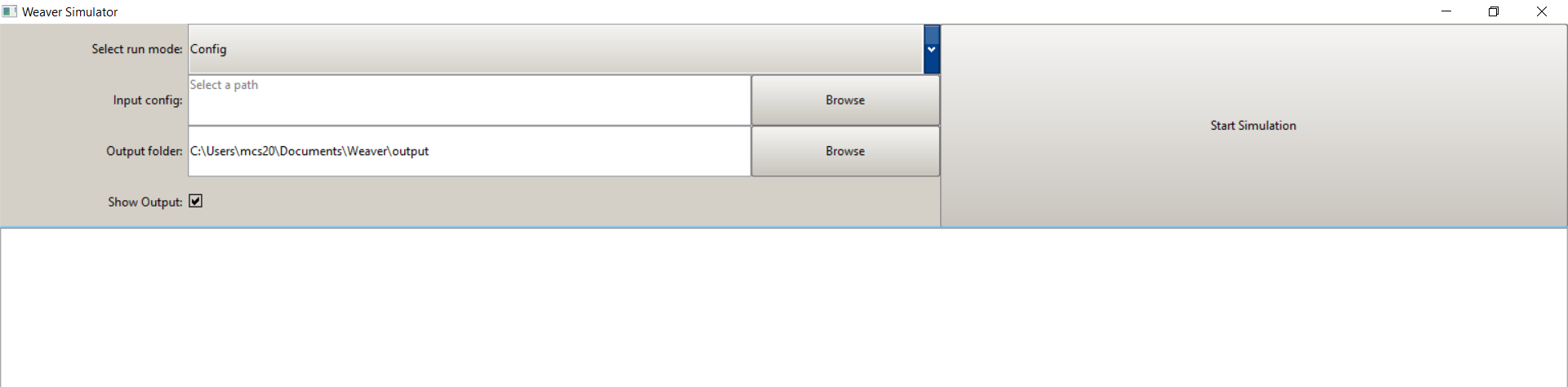
Main window of the graphical version. Users can configure the simulation parameters directly through this interface.
Summary
Version |
Interface Type |
Build Modes |
|---|---|---|
Non-GUI |
Command-line / Interactive |
Normal / Fast |
GUI |
Graphical user interface |
Normal / Fast |